2.8.0 – Advanced Number Formatting

Iiro
Christensen
Advanced number formatting
We’ve now introduced comprehensive Number Formatting options. These give you granular control over how values are displayed in your reports.
Where
Number formatting is launched from the # button in the top section of the report card
An indicator is shown next to the report title if scale is set to thousands or millions
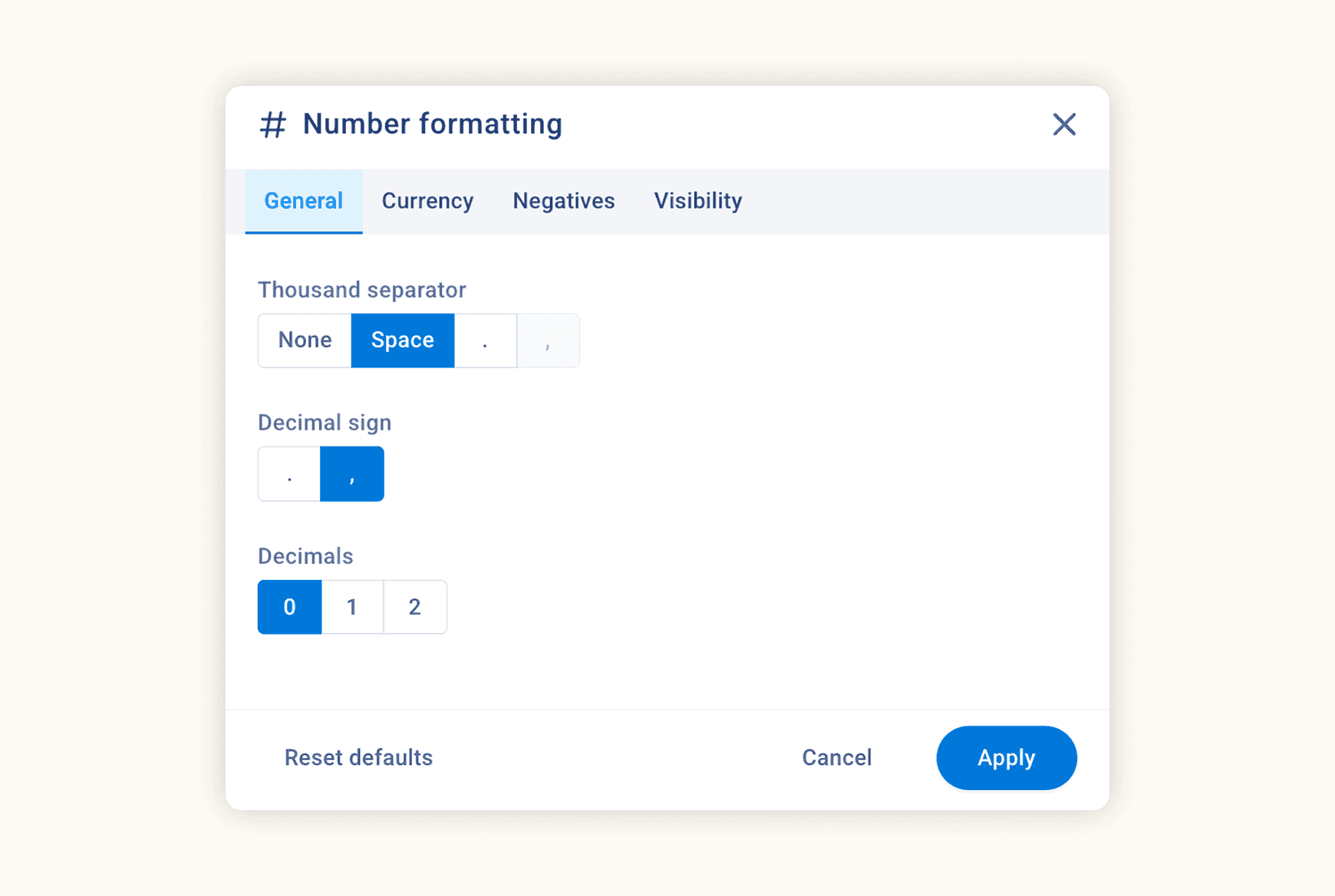
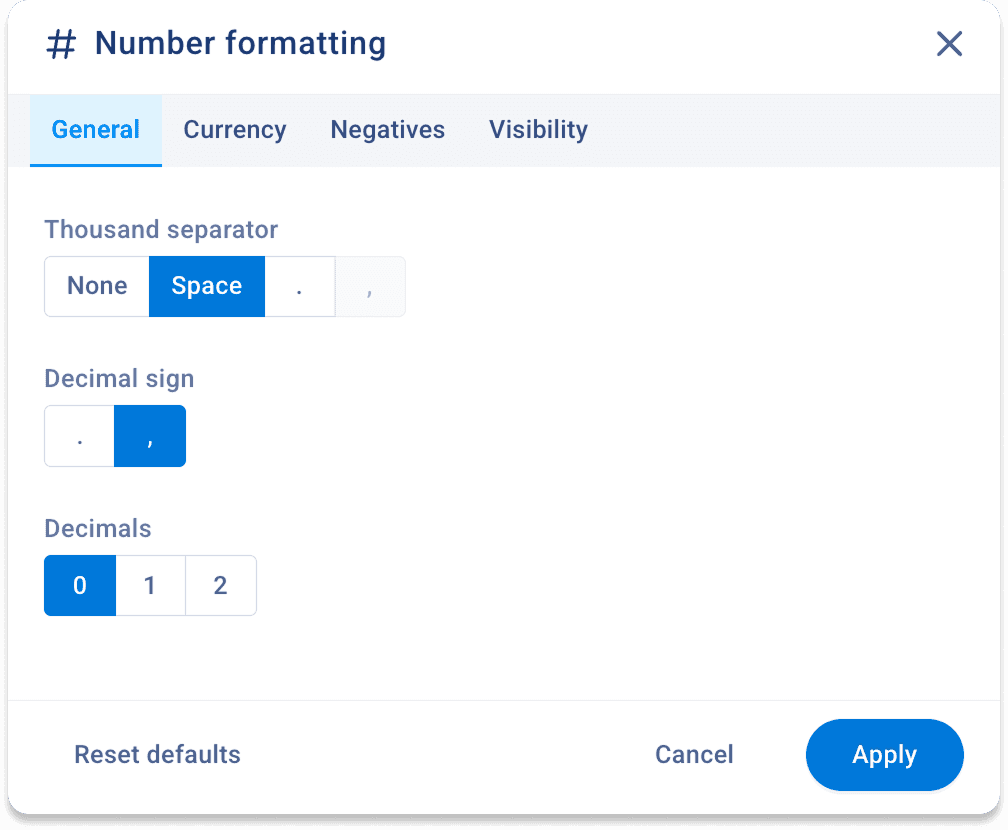
General
Choose thousand separator: space, dot, comma, or none
Select decimal sign (dot or comma)
Set decimal precision (0–2 decimals)
Currency
Control currency position (before left/right, after, or none)
Scale values (e.g. thousands, millions)
Round to nearest (100 → 1,000,000)
Negatives
Configure negative sign placement (left, right, parentheses, or none)
Optional red color for negative values
Visibility
Hide values below a defined threshold (still calculated in the background)
Customize zero display (hide, 0, or dash)
Define how missing data is shown (empty, 0, or dash)
These updates improve reporting clarity, localization flexibility, and presentation consistency across financial views.
Show all items & other updates
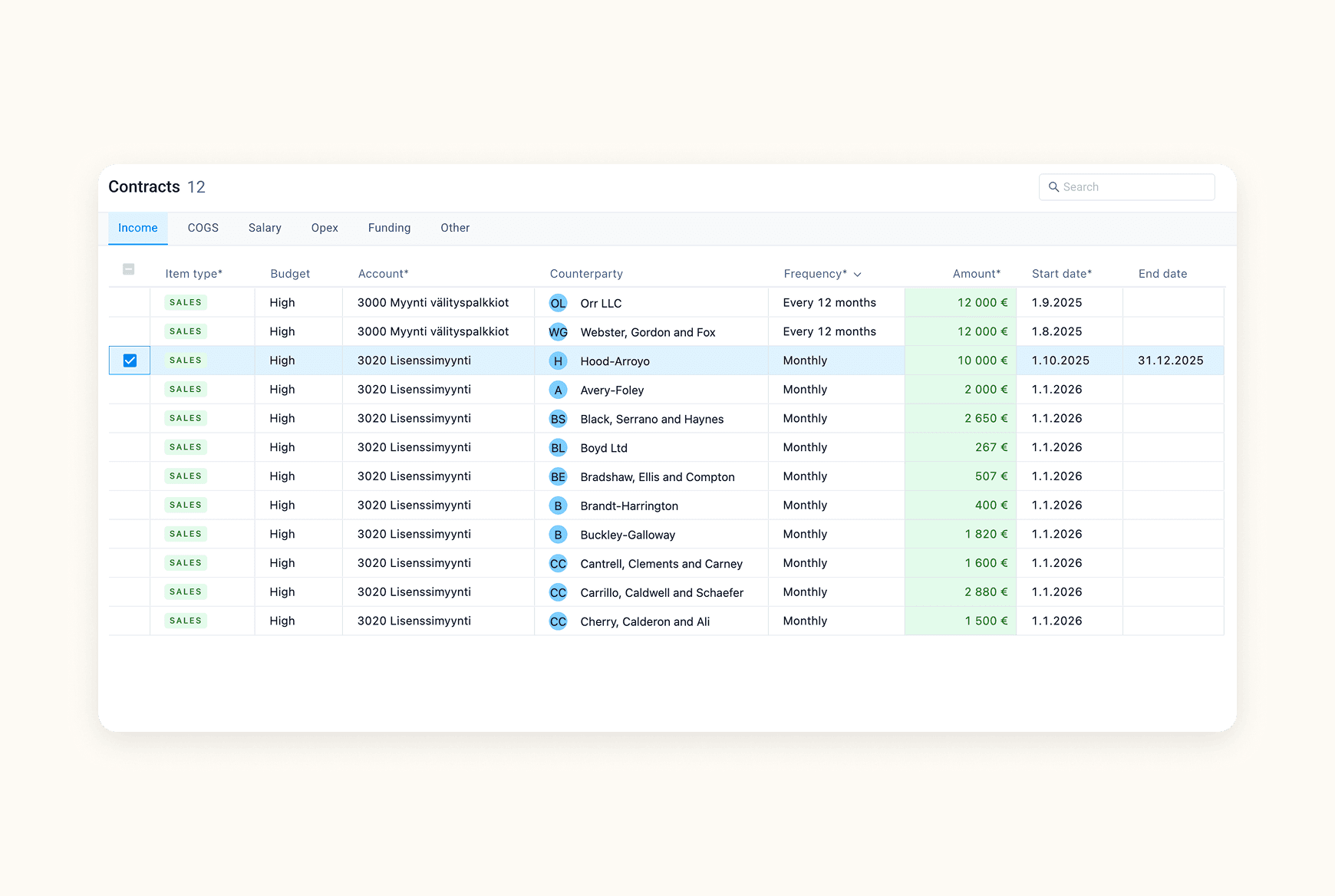
Show all accounts and dimension labels in reports
Reports now have the option to show all account numbers or dimension labels.
This makes it much easier to add budget rows to any account or dimension label.
Improved copy/paste in budgeting
Copy a value to your clipboard
Select a range in the budget (e.g. 12 months)
Paste with Shift+CTRL+V
Value is divided evenly to all selected cells
Improvements to left & right panels
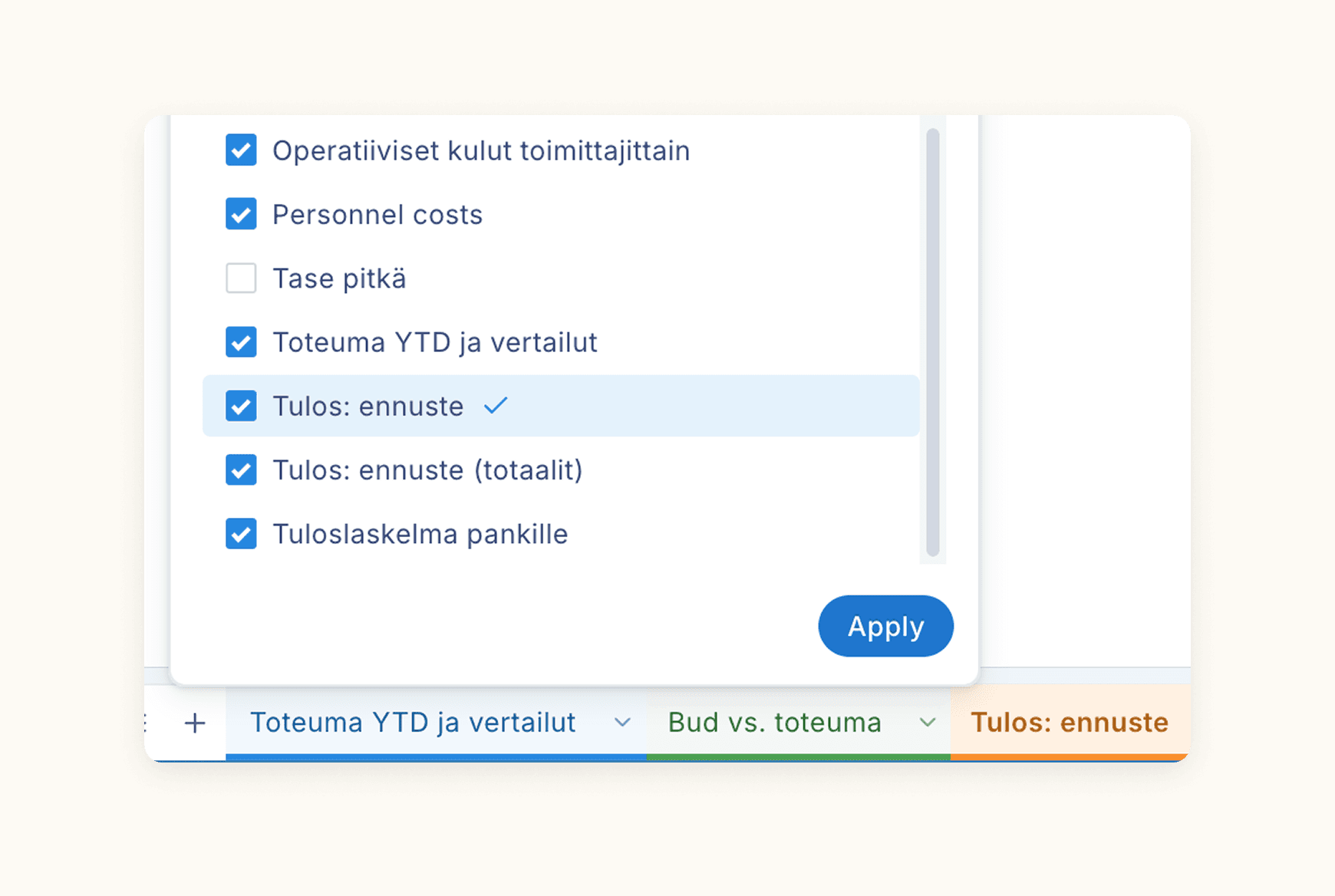
Most panels are now shown as overlays for a calmer experience
Panels can be pinned
Layout panel has now a search field
Bug fixes
Report builder
Adding a dimension below an existing section now works correctly.
Dimensions can now be placed above, below, or inside a section more easily and reliably.